

What Do You Need to Build a Website? (Full Beginner Guide)
“What do I need to build a website?” If you find yourself asking that question, you’re in the right place. In this step-by-step guide, I’ll go over all the basic pieces required to create a web presence for yourself. Plus, I’ll provide some recommendations for which tools and services to use.
So, if you are an aspiring freelancer or entrepreneur who wants to start earning money online, you’ll walk away from this post with all the knowledge required to make the right decisions for yourself.
Note: Some of the links below are affiliate links. If you use them to buy or sign up to anything, I get a small commission, which helps pay for this website and my livelihood. It does not increase the price for you. But it does win you my eternal gratitude and the right to a free high five if we ever meet in real life.
The Fundamentals: Basic Website Building Blocks
Let’s start off with the different parts that make it possible for a website to appear online and how to acquire them.
Hosting — Your Website’s Home
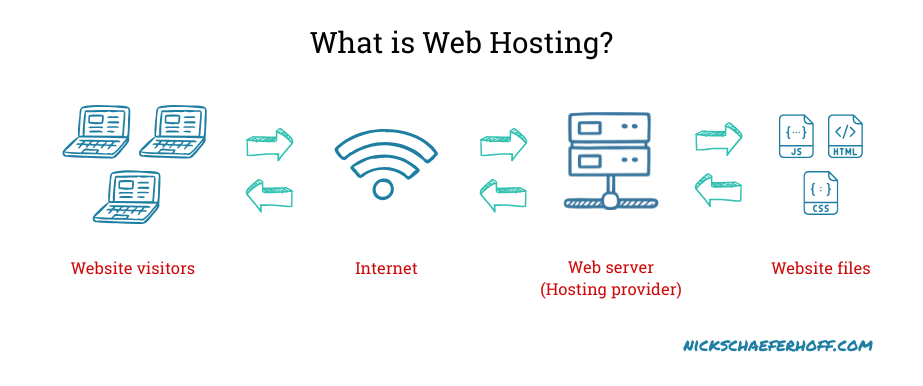
Websites consist of files. Web browsers can read and interpret the code in those files and display it as web pages. For that to work, the files need to be in a location where people can access them remotely. That’s where hosting comes in.
A hosting provider is a company that rents out space on a server — a computer connected to the Internet — for exactly that purpose.
There are different kinds of hosting providers. While their basic service is the same (renting out web space), the difference is in their architecture, performance, quality, and additional services they offer.
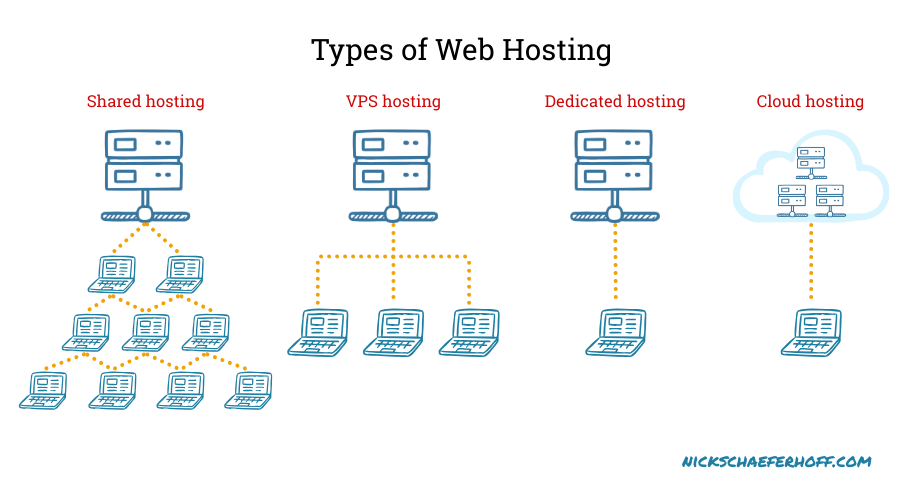
For example, the cheapest hosting is usually shared hosting. It’s called that because it means your website shares a server and its computing resources with many other sites. This reduces costs but can also come with performance problems when one of the websites hogs more than its fair share of the server’s resources. Other types of hosting (VPS, dedicated, cloud) offer increasing levels of computing power reserved solely for your site.
Another difference is the level of management. Some hosting providers only supply server space and otherwise leave you completely on your own. Others play an active role in running your website, like managing security and/or performance. There are also SaaS (“software as a service”) solutions that do everything, including providing the software to build your website. More on that soon.
Hosting costs typically start at around $5/month and there’s pretty much no upper limit. But, under certain circumstances, you may be able to procure free hosting for your site. Check the resources below for more information.
Domain — Your Permanent Address
You already know what a domain is, even if you’re not familiar with the term. It’s the address you type into your browser bar to access a website, e.g. google.com, wikipedia.org, or nickschaeferhoff.com (that last one being your favorite, of course). When connected to your hosting, your domain sends people to the server with your website files.
You can acquire domains from a domain registrar. Those are businesses that sell domains and also take care of all the technical things to set up and register them.
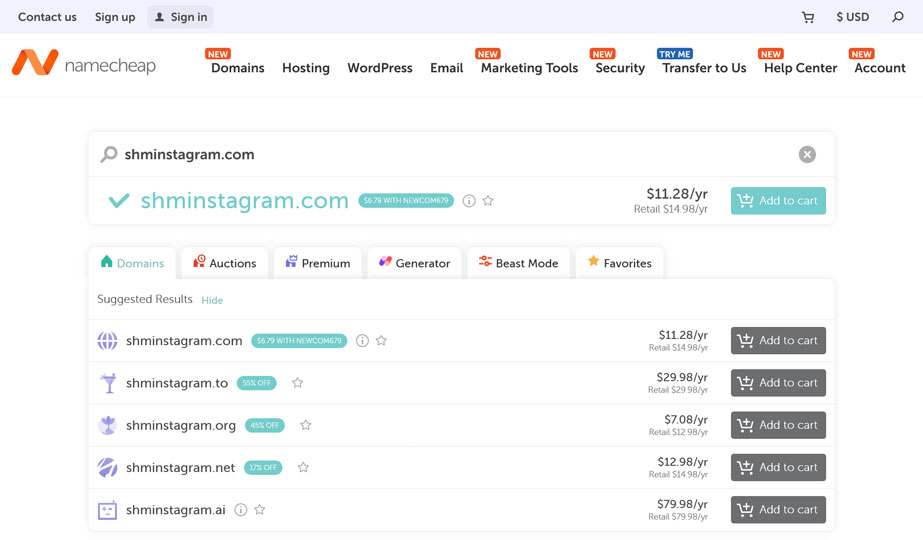
Note that you can’t buy a domain outright. You can only purchase exclusive usage rights for a defined amount of time — usually a year — with the option to extend your lease as long as you wish. If you ever decide you don’t want or need a domain anymore and let it expire, someone else can pick it up afterwards.
A normal, non-premium domain costs around $15/year. Prices can differ between domain registrars so it makes sense to shop around. Many hosting providers also sell domains and might even throw one in for free for the first year as a bonus when you sign with them.
It’s possible to get a permanently free domain but those are usually subdomains on existing websites (e.g. yoursite.wordpress.com) and therefore unsuitable for professional purposes.
Website Software — What Powers Your Site
If websites consist of files, how do you create those files? There are different ways of doing so.
Static Websites
In the early days of the web, people would create websites by manually writing HTML, CSS, and JavaScript code inside text files, and putting those on their server. The results are called static websites. That’s because their content is hard-coded and the same for every visitor.
The opposite of that are dynamic websites. They display information depending on what a visitor wants to see. For example, when you have an online shop and someone filters your products according to what they want to buy, the resulting page is created dynamically. This isn’t possible on a static website, unless you manually create the filtered search page beforehand.
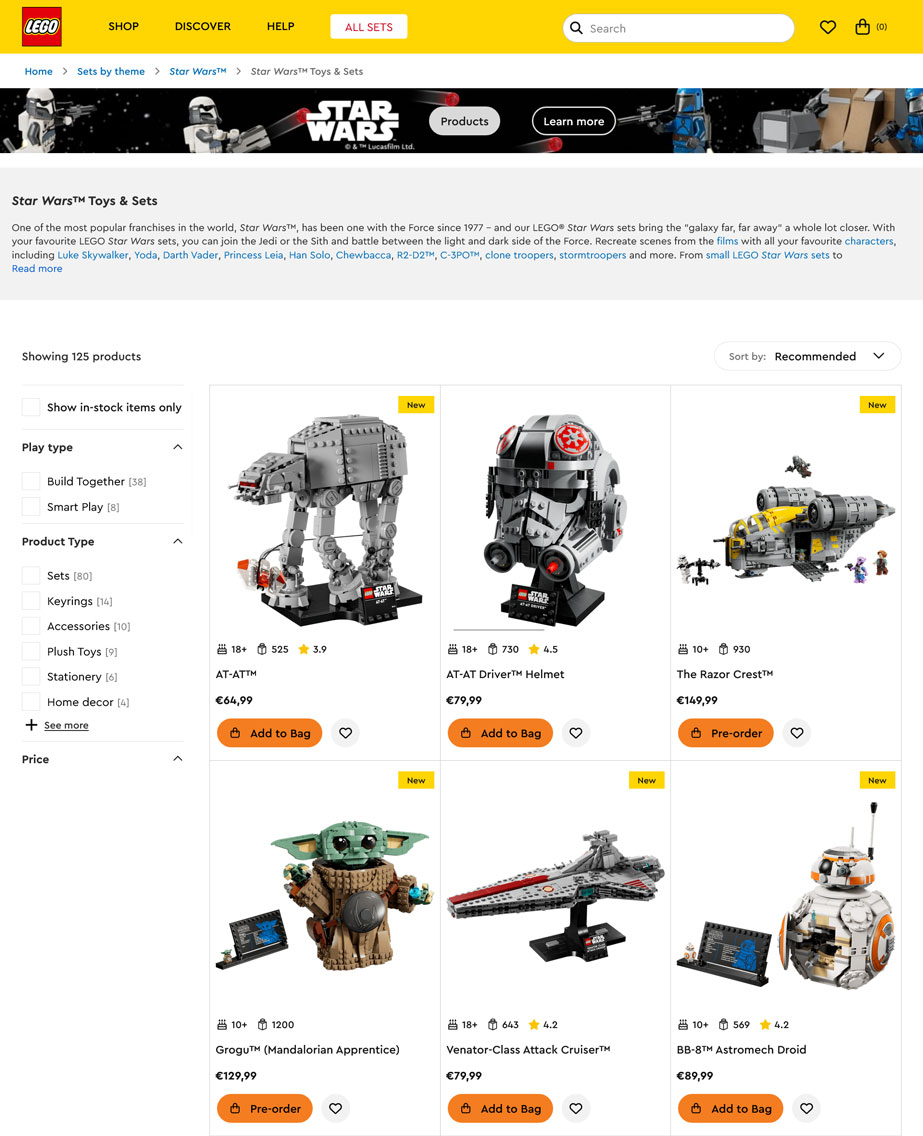
The advantage of static websites is that they are super fast. The server doesn’t have to do any work, like pull content from a database, but can simply send over the website files it has at hand. That results in fast loading times and also often means you can go for cheap hosting, since static websites don’t need a lot of resources. They are also very secure, because there are fewer moving parts to hack.
The disadvantage of static sites is that you need to be familiar with the aforementioned programming languages to manage and update them. That’s easier now than in the past. For one, these day, you can find many ready-made and customizable templates online so you don’t have to start from scratch. You can even ask AI to write markup for you.
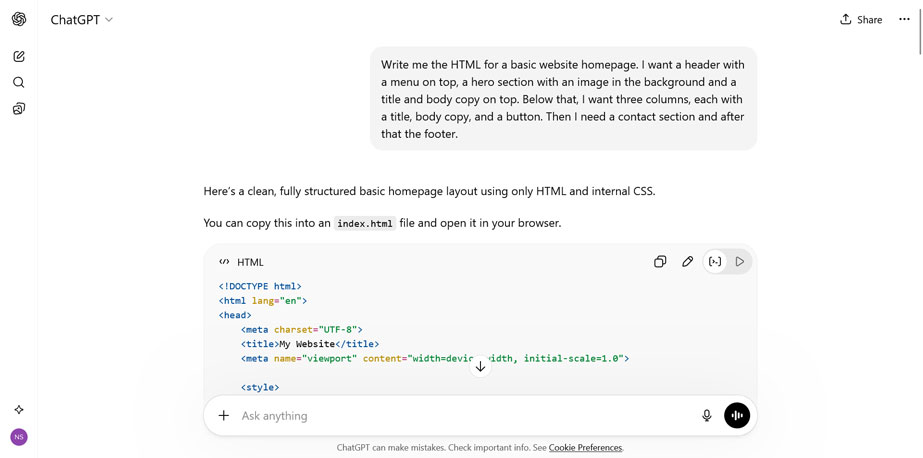
At the end though, building and running a static website is a lot easier if you have at least some coding knowledge, or are willing to acquire it.
Static Site Generators (SSGs)
A relatively recent way to create non-dynamic websites are static site generators. The way they work is, you give them your content and design in plain text and as templates and the SSGs turns that into HTML, CSS, and JavaScript . It’s more convenient than manually coding a website and the result offers the same benefits as hand-coded static sites. There are even providers that let you host your SSG-derived website for free, more on that later.
While this all sounds great, be aware that static site generators are popular among developers, meaning they are not a beginner-friendly solution. To use them, you need to familiarize yourself with templating languages like Markdown.
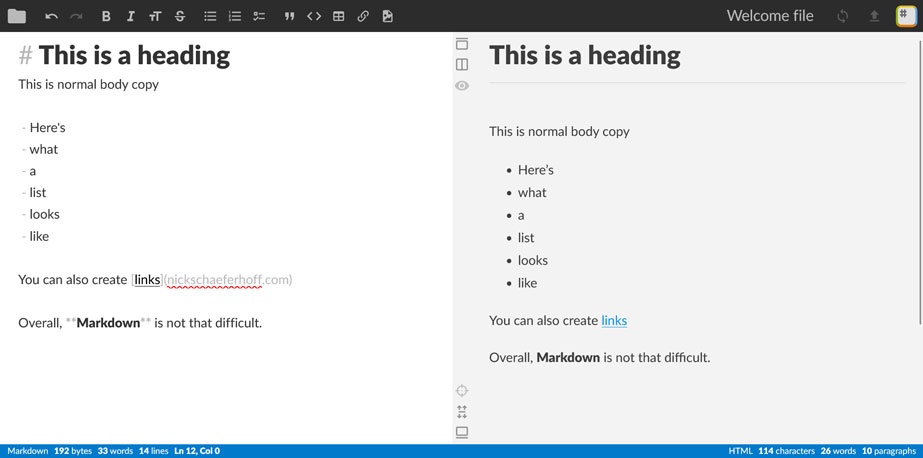
While there are solutions like StackEdit or HackMD that help you create Markdown code from a text editing interface, there’s definitely a learning curve. The same goes for setting up SSGs and deploying your site to a server, much of which happens in a command line interface.
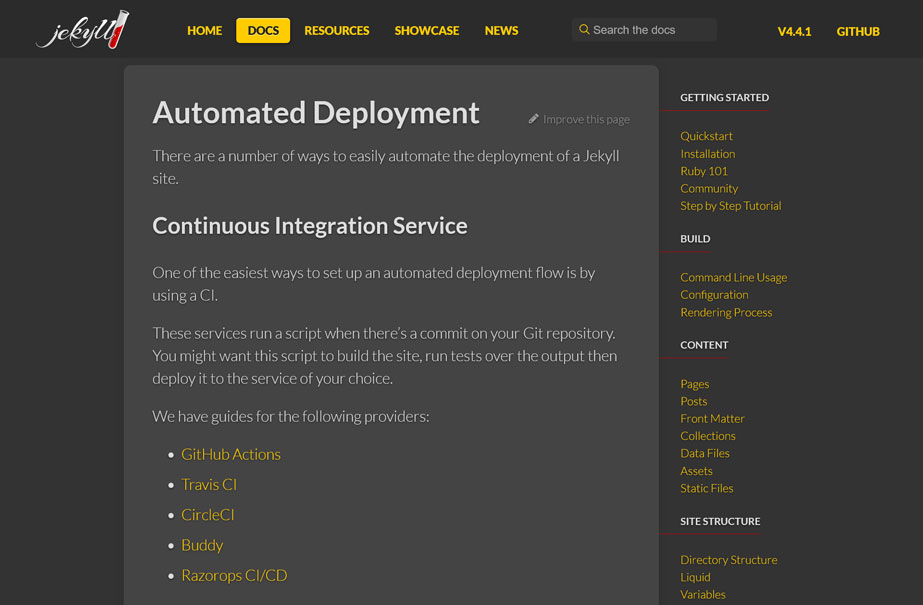
In short, while SSGs have a lot of benefits, you have to be willing to put in the time and effort it takes to make use of them.
Content Management Systems (CMSs)
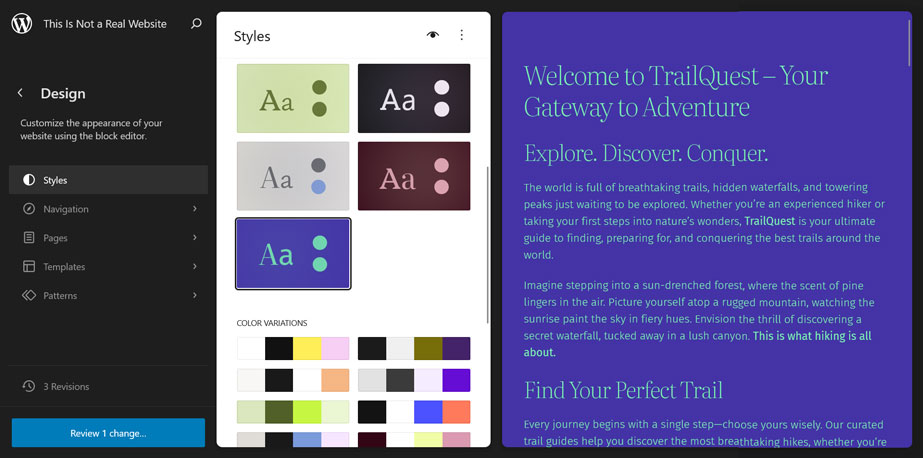
A CMS is one of two no-code software solutions to create a websites. Instead of working with files, you do everything, like making design choices and creating content, from a visual user interface.
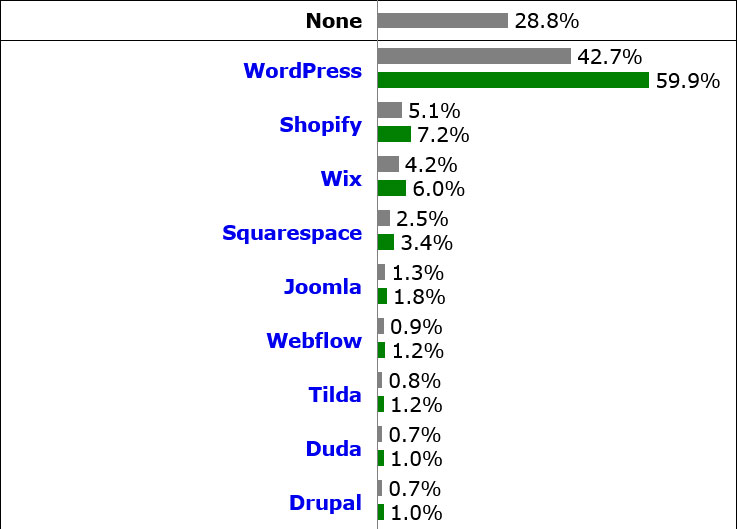
CMSs are very popular. In fact, WordPress, the most widely used content management system in the world, powers more than 40% of the entire Internet.
These systems are a great choice for people without web development skills and also offer additional benefits:
- Ownership: Content management systems are independent pieces of software. You can install them on pretty much any server (in fact, many hosting providers offer one-click solutions to do so) and also pack them up — design, content, and all — and move your site to somewhere else.
- Control: The most popular CMSs are open source, meaning you have full access to the code base. As a consequence, you can customize every part of them completely to your needs. That’s especially true when you know how to code.
- Flexibility: CMSs allow you to build all kinds of different websites. Most of them, especially WordPress, offer extensions like design templates and plugins that easily let you add layouts, features, and functionality to your site, even without technical skills.
- Pricing: Open-source solutions are free to use. When you don’t have to pay for the system powering your website, your only fixed costs are hosting and domain.
What’s the downside of using a content management system?
Having complete ownership of your site also means you have more responsibility. For example, you have to take care of updates, security, and performance optimization. There are ways around that though as we’ll discuss soon.
Website Builders
In contrast to standalone CMSs, website builders are proprietary all-in-one SaaS solutions. They give you everything in one place — hosting, domain, website software, site administration, and optimization — in the form of a subscription. This means you don’t have to worry about any of the technical things of running a website. All you have to do is design your site and create content, which most often happens with a drag-and-drop editor.
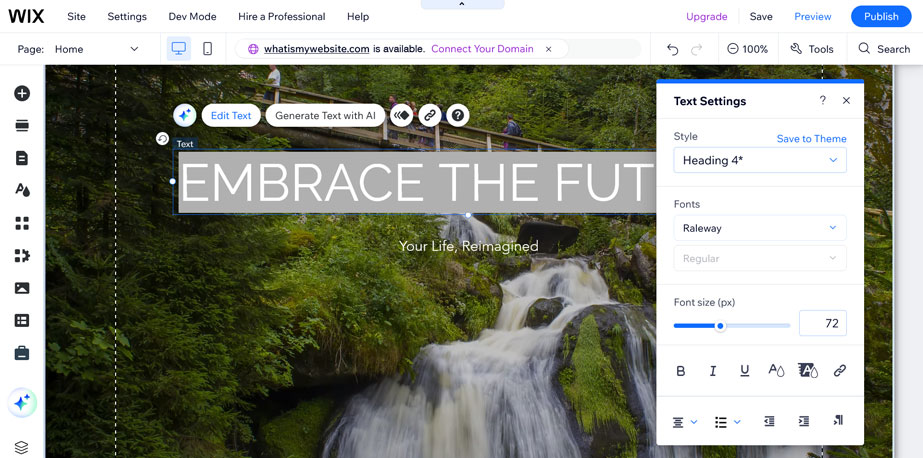
Website builders are very convenient and often a great solution for beginners. They also makes it quick to get started — simply sign up and you are ready to go. No need to connect the different parts of your website or install additional software, everything is taken care of for you.
At the same time, they also come with some serious drawbacks:
- Cost: Website builders are most often more expensive than using a CMS plus hosting. They also frequently reserve their best features for higher plans or paid extensions.
- Inflexibility: You are limited to the features your website builder offers. You don’t have access to the underlying code or server settings and can’t make changes to it if you need to.
- Platform lock-in: It can be quite difficult to take your data and content with you if want to move your site elsewhere. In a way, you are just renting your site, not fully owning it.
Hybrid Solutions
If you feel like you are stuck between a rock and a hard place choosing between these options, there is also a middle road. For example, if you want to use a CMS like WordPress but also want a more website builder-like experience, you have two possibilities:
- Managed hosting: Managed hosting providers take over the technical parts of running a website. They will carry out software updates, keep your website safe, and optimize it for performance. That way, you can concentrate on simply building and growing your site. Managed hosting costs more than non-managed options, but you still get all the benefits of running your site on a CMS in terms of flexibility and ownership.
- Page builder plugins: Especially WordPress has a number of plugins that provide you with a similar drag-and-drop site building experience as SaaS site builders. So, if your main decision point is the editing experience, this could be a real alternative.
Of course, you can also use both managed hosting and a page builder plugin. That way, you get the best of both worlds — a site that belongs to you and is as comfortable to use as a proprietary solution.
What Should You Choose to Build Your Own Website?
After this crash course in website building, of course the big question is still, what’s the right option for you? Well, it depends a lot on your goals, skills, willingness to learn, preferences, and what you most value. Let’s go over a couple of common scenarios.
If Your Website Won’t Change a Lot, Consider a Static Site
Static websites are ideal for cases like brochure sites or landing pages. Something that simply states who you are, what you offer, and how to contact you. No blog, no online shop, nothing that changes very often. A site you build once and then basically don’t touch for a very long time.
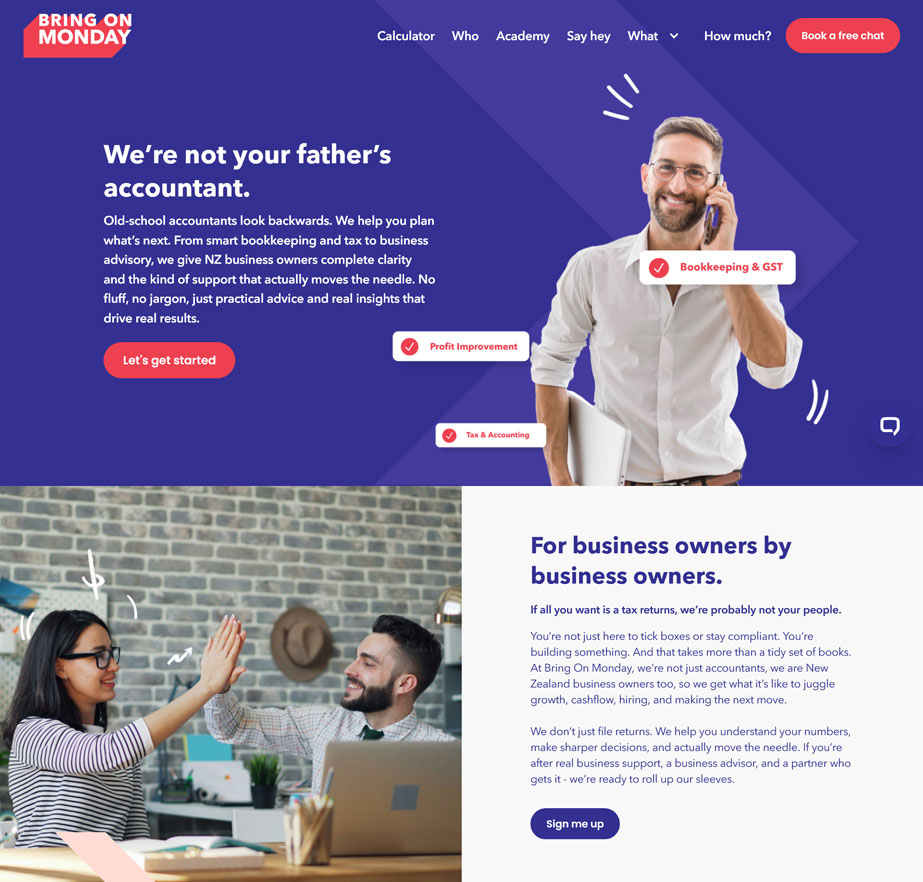
If that sounds like what you are looking for, it’s an ideal use case for a static website with all its benefits, especially in the loading speed department. There are plenty of tools that can help you build one and even if you end up hiring someone, it shouldn’t cost a lot.
The only real problem you may run into is if need a contact form or some other dynamic functionality. However, even for that there are solutions.
Self-host If Budget is Your Main Concern
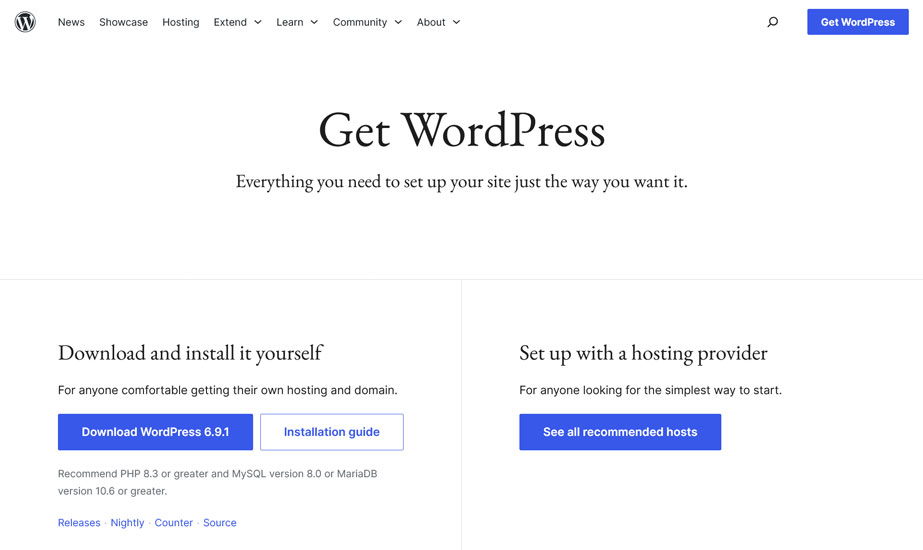
If you mostly care about cost, your best bet is almost always to get your own hosting and install whatever website solution you choose on it. You can get solid hosting for $3-$5/month plus a domain for $10-$15/year (so, $4-$6/month overall). Those are your only fixed costs, everything else is optional.
As mentioned, CMS like WordPress are free. While it often makes sense to invest in a premium theme and maybe a plugin or two, your hosting and domain are the only two items you definitely have to budget for.
In contrast, the cheapest plan for a website builder is $16-$18/month for an annual subscription and that just gives you a basic site. If you want to add e-commerce functionality, the lowest plan is $28-$30/month. In contrast to that, WooCommerce, the leading WordPress e-commerce solution, is free (though you may need some premium extensions here, too).
There’s a bit more of a learning curve, but a self-hosted website is pretty much always the most cost-effective solution.
When Using a CMS, Choose WordPress
Speaking of WordPress, if you plan on powering your site with a CMS, WordPress is the one I recommend. One of the main reasons is its popularity. Because of the huge community, there are tens of thousands of tutorials, plugins, and themes for pretty much anything you would want to do with your website.
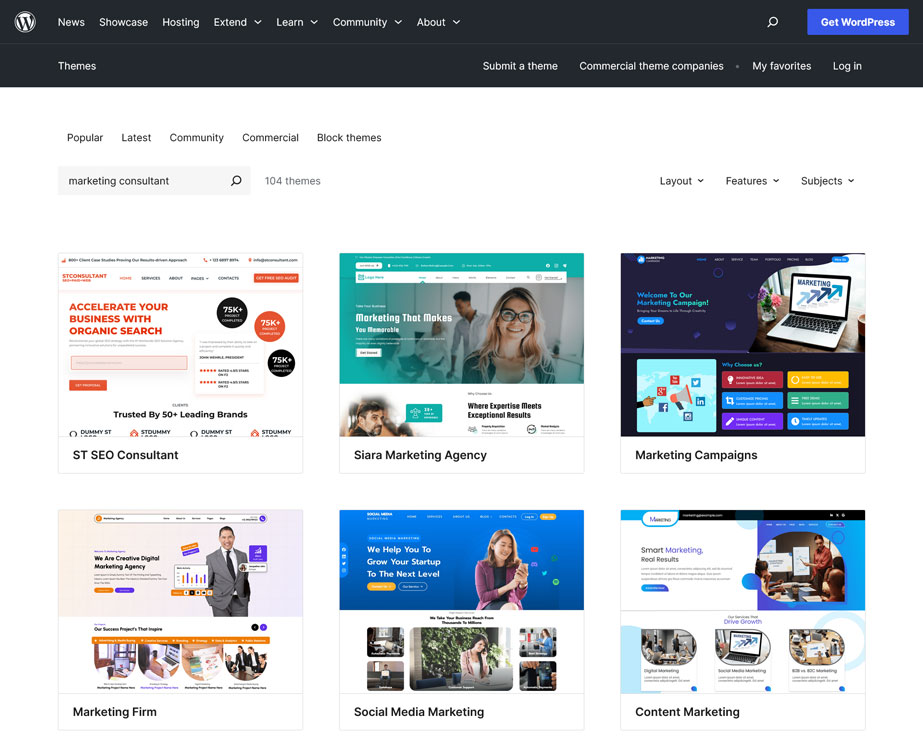
You can add online shop functionality, set up web forms, connect to Google Analytics, and more — most of it without paying anything extra. WordPress offers an easy-to-use base system you can turn into pretty much any website you need, with or without coding knowledge. Plus, it’s also the most beginner-friendly system I have found.
For Content Websites, Pick WordPress as Well
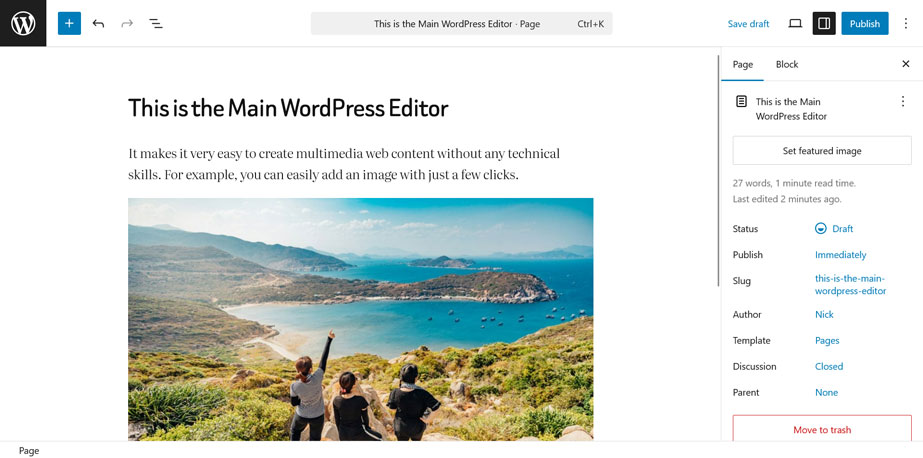
One long-term consideration to keep in mind is whether content creation is part of your marketing strategy. If so, WordPress is usually the best solution here, too. To my knowledge, no other system has figured out content creation and blogging in the same way. The content editor is simply great and makes it easy to create even long content with lots of images and other media.
No Technical Skills at All? Use a Website Builder or Managed Hosting
If you just want to start, don’t want to deal with anything technical, and don’t need anything custom, website builders are the tool for you. They are one of the quickest and easiest ways to build your own website and they do a solid job. Website builders also specifically aim at non-technical people and have dedicated technical support. That’s as beginner-friendly as it gets.
This is especially true for e-commerce websites. It’s so much easier to use Shopify or Squarespace than setting up your own self-hosted shop.
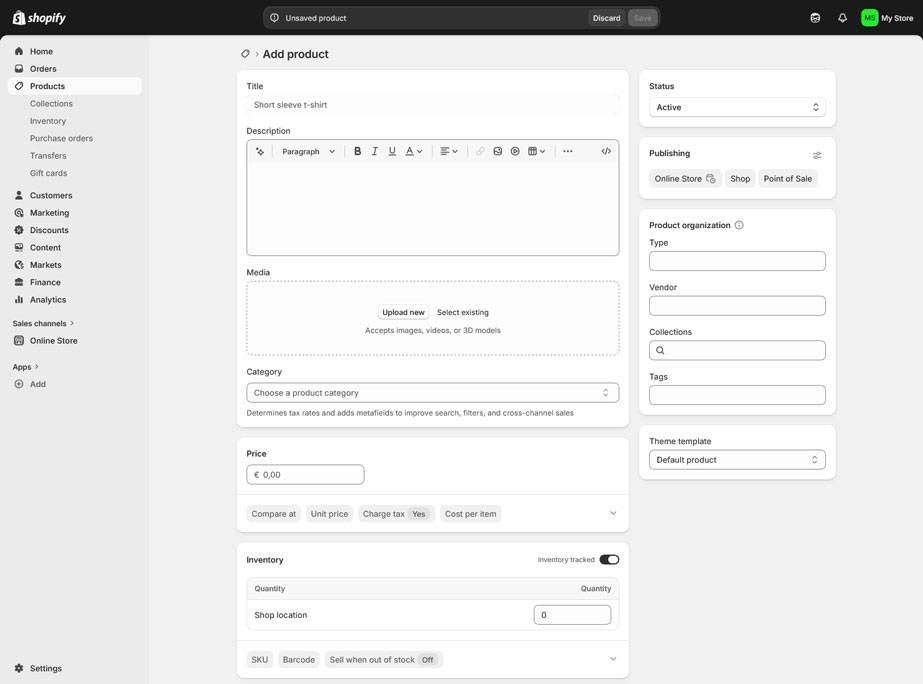
It’s not my preferred solution, because I want ownership over my content and the ability to tinker. But I fully understand that not everyone feels that way. Just a reminder, if you want a bit of a middle ground between owning your site and avoiding a too technical approach, managed hosting and page-builder plugins are also an option.
Consider Your Long-Term Goals
While website builders are great for starting quickly, that shouldn’t be your only reason for choosing them. As mentioned, it’s much harder to move on from them once you’re locked in. That’s great when they do exactly what you want them to do but a pain if they don’t.
Do think about what you want to do with your site long term and if the website builder you are considering has the features you require for it. Consider if they are hidden behind a more expensive plan than you are ready to pay for. A little bit of planning can eliminate a lot of headaches down the road.
Overview: What to Use for Your Website
Here’s everything we talked about so far in one table for a quick overview:
| Your needs and goals | What to use | Technical skill required | Benefits | Trade-offs |
| Simple site that rarely changes | Basic, template-based static website | Low-medium | Fast, secure, cheap hosting, minimal maintenance | Limited dynamic features like contact forms |
| Simple site and willingness to work with technical tools | SSG-based static site | Medium-high | Fast performance, clean architecture, Markdown-based content | Steep learning curve |
| Lowest possible ongoing cost | Self-hosted CMS | Medium | Free software, cheap hosting, full ownership | Responsible for ongoing maintenance (updates, etc.) |
| Blogging or content-heavy website | (Self-hosted) WordPress | Medium | Great content editing experience and SEO | Website maintenance is on you (updates, backups, etc.) |
| Online shop on a tight budget | WordPress + WooCommerce | Medium | Free core e-commerce, flexibility | Setup and maintenance more involved than SaaS |
| Online shop, no technical hassle | Website builder (Shopify) | Very low | Everything handled for you | Higher cost, platform lock-in |
| Absolutely no technical skills | Website builder | Very low | Drag-and-drop builder, support included, fastest way to start | Less flexibility, it’s hard to change platforms later |
| You want ownership but no maintenance | Managed WordPress hosting | Low | CMS flexibility without the technical burden | Higher monthly cost |
| You want drag-and-drop but full control | WordPress + page builder | Low–medium | Website builder experience with real ownership | Can add complexity and be a drain on performance |
| Long-term growth and flexibility matter | (Self-hosted) WordPress | Medium | Easy to scale, migrate, monetize | Requires learning the basics, ongoing website maintenance |
| Test an idea quickly | Website builder | Very low | Launch in hours | Costs add up long-term |
Resources to Build Your Own Website
After this basic introduction to website building, the only thing left to decide is what tools and services you’ll actually choose. You’ll find my recommendations from different categories below.
Domain Registrars
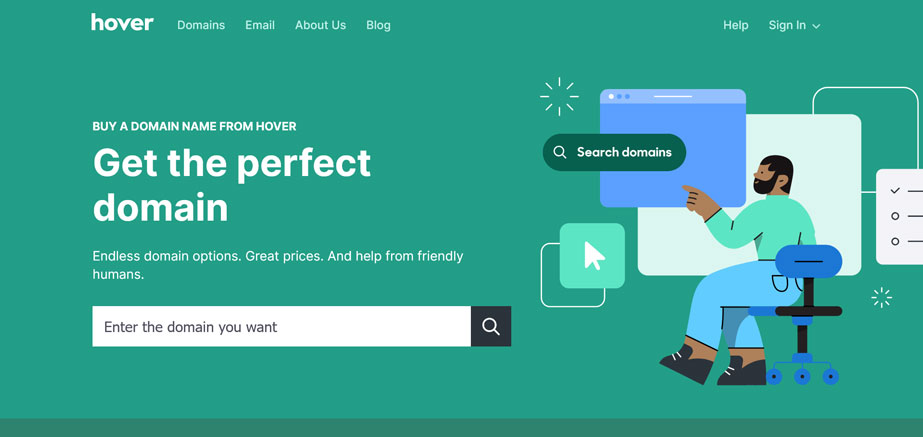
Good places to acquire your dream domain:
- Namecheap: Offers affordable prices with some domains as low as $1. Easy to use, free WHOIS privacy, and solid renewal prices. I’ve acquired several of my own domains here.
- Hover: Stands out with its simplicity and no frills service. They have a transparent pricing table for all their domain endings including renewal fees. Free WHOIS protection is included and Hover is known for its great customer service.
- Porkbun: People online pretty much only have good things to say about Porkbun. They offer some of the lowest prices for domains with lots of first-year discounts. Pricing is transparent without hidden fees, the user interface is great and you get free SSL certificates and WHOIS protection. Great for beginners!
- Cloudflare: Cloudflare charges domains at cost, with no markup, surprise fees, or expensive renewals. This puts them among the cheapest registrars for many domain endings and offers long-term cost certainty. They also have great security features and are known for their solid infrastructure. However, Cloudflare is less beginner friendly and you are locked into using their DNS servers.
- WordPress.com: Offers cheap .blog domains as well as more than 350 other domain endings. They offer a great user experience and a solid domain-finding tool. If you want to go crazy, check their 100-year domain plan.
- Squarespace Domains: Formerly Google Domains, Squarespace is a website builder that sells domains as part of their SaaS offering, and also separately. They, too, provide free domain privacy protection, a free SSL certificate, premium DNS, and competitive prices.
As mentioned, a lot of hosting providers also offer deals on domains as part of their sign-up process. Be sure to compare renewal fees! In the long run, it can often make sense to buy your domain separately.
Tools for Static Websites
In this section, you’ll find useful resources for creating a static website.
Learning Resources
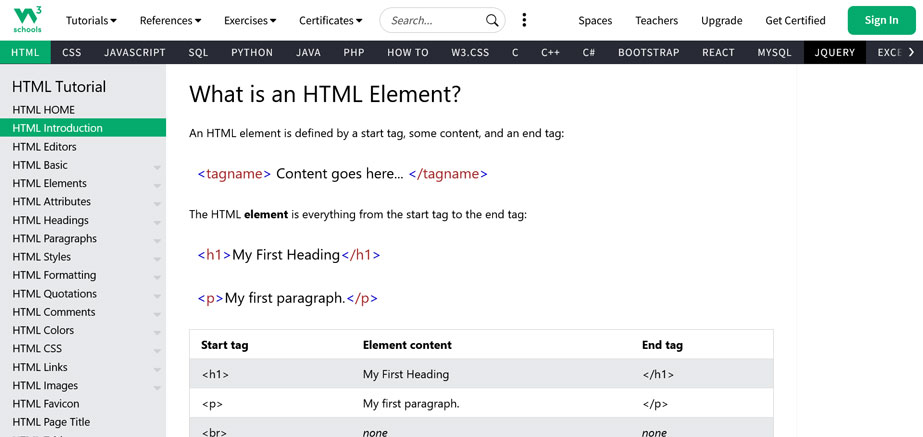
To build or maintain a static site, you need to know how to use and read code. At least, it really helps if you have even rudimentary skills, especially in HTML and CSS. Here are some great learning resources to improve in this area:
- W3Schools: Free tutorials on an incredibly wide array of programming languages, including HTML, CSS, and optional JavaScript. The site has structured learning paths for each language with lots of examples, in-depth explanations, and a built-in editor to try out what you learned.
- freeCodeCamp: As the name suggests, this is another free learning resource. It, too, offers step-by-step learning roadmaps for web development languages and beyond. freeCodeCamp also has a YouTube channel with many tutorial videos.
- Codeacademy: Learning resource with many free and paid courses on all things web development and programming. It’s more intensive, so I’d recommended it if you really want to learn the ins and outs of coding, not just gain enough knowledge to customize your site.
- Developer Roadmaps: This is a community project where developers have created learning roadmaps to master different programming languages and development roles. It includes blueprints with links to useful learning resources for each area.
- Mozilla Developer Network: MDN is one of my go-to resources to learn about web technology. It has in-depth documentation on every CSS operator and more. Check the MDN Curriculum for a front-to-back education in front-end development.
- YouTube: If you are more of a visual learner, there are many YouTube channels that teach you more about web development. Good ones to start are Web Dev Simplified, Programming with Mosh, and Kevin Powell.
I also highly recommend that you familiarize yourself with browser developer tools. They allow you to look at the underlying markup of any website.
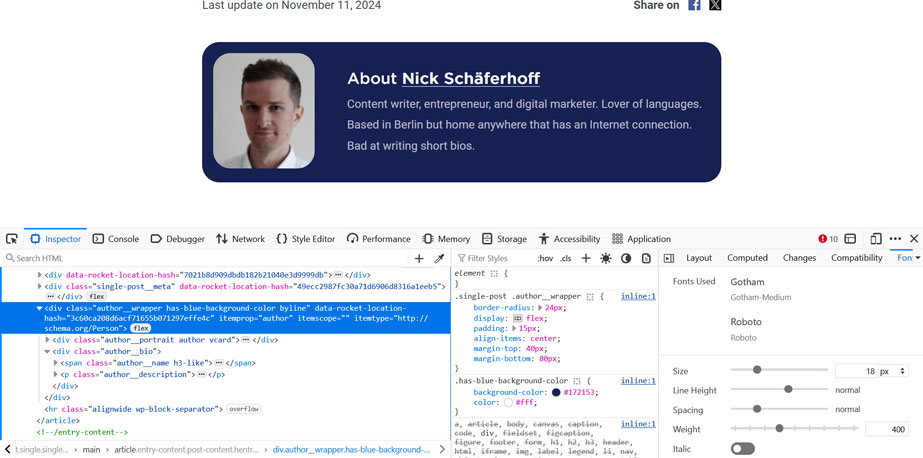
It helps you learn how other websites implement features you like (and copy them). That’s basically how I learned CSS.
Code Editors
Static websites require you to make changes to markup files. This is much easier using a proper code editor than your computer’s standard notepad. Code editors display markup in a way that makes it easier to read, for example, with indents or color coding.
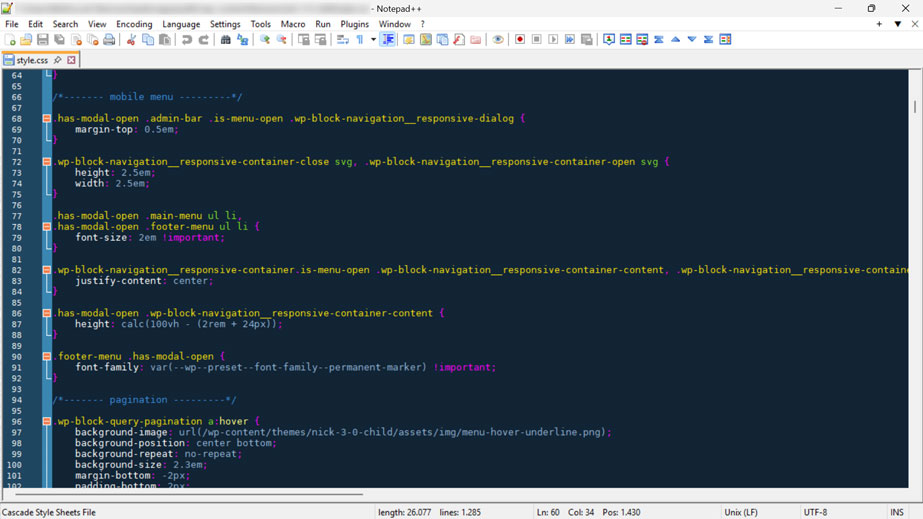
Plus, they usually have additional tools like autocomplete, plugins, and AI assistance. These are free options I recommend:
- Visual Studio Code: A popular solution with a large plugin ecosystem. You can integrate it with Github and the Microsoft Copilot AI, but it may be overpowered for beginners.
- Notepad++: This is the code editor I use. It’s simple, extendable, and does what it’s supposed to do. Windows only though.
- Zed: A community-built editor that has AI built in (limited on the free plan). You can also connect it with external LLMs like Claude Code.
Customizable HTML templates
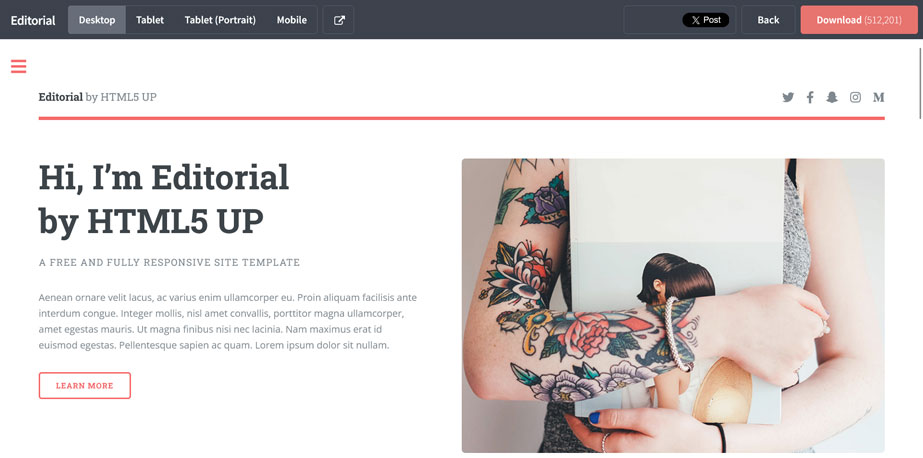
Use these as starting points to create your own website without beginning from zero:
- HTML5 UP: 40+ free, customizable, and mobile responsive website templates built with HTML5 and CSS3. They are licensed under Creative Commons Attribution, so you are free to use and customize them for any purpose (including commercial projects) as long as you give credit to the creator.
- HTML5 Boilerplate: This is a free HTML5 website template with 10+ years of work behind it. It may be overkill if you are not a developer and just want something simple but it’s still worth checking out.
Static Site Generators
Let me reiterate: SSGs are not for beginners. I’ve been building websites for almost 15 years and while I understand how static site generators work, I have never used one myself. So, don’t beat yourself up if this seems beyond your current skill level. You don’t have to dive straight into the deep end for your first website.
That being said, if you want to give it a go, several services allow you to host your static websites for free (up to a point, and you still need to pay for your own domain). Among them are Netlify, Vercel, Cloudflare, and Github Pages. Most of them are compatible with the following SSGs:
- Jekyll: Is open-source and free to use. It supports Markdown, Liquid, and HTML/CSS and is blogging friendly with taxonomies and permalinks.
- Gatsby: This SSG understands Markdown as well (among other languages). It has a large plugin ecosystem, including an extension to connect Gatsby with WordPress. The software belongs to Netlify so the documentation nudges you heavily to host your Gatsby site on their servers. However, other services also support it, at the least Vercel and Kinsta.
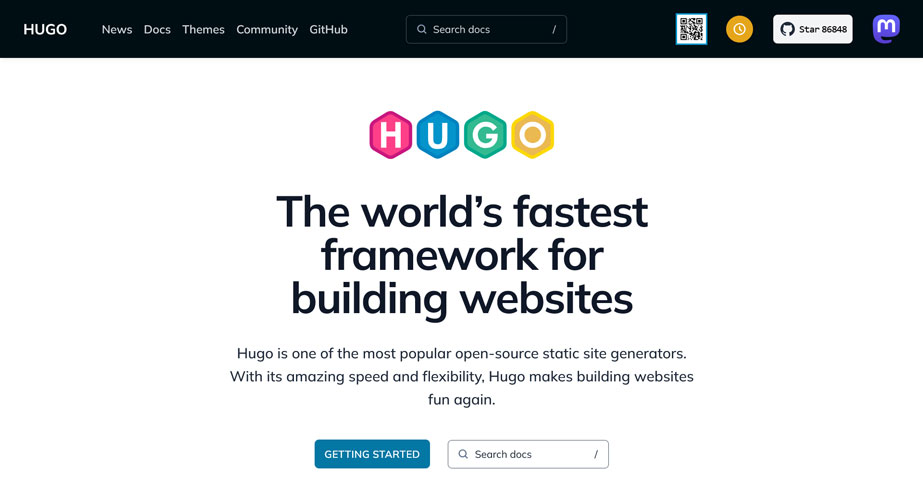
- Hugo: Hugo is known to be very fast. It’s also open source, has Markdown support, and is suitable for a wide range of websites including blogs. The SSG allows you to set up templates for different types of content, uses themes like WordPress, and offers live preview for changes.
- 11ty: “Eleventy” is another popular solution among developers. It’s great for content sites and blogs, but can also power online shops. The SSG has live preview and supports several templating languages, including HTML, Markdown, and Liquid.
You can find even more static site generators on Jamstack.org.
General Hosting Providers
Below is a list of hosting providers I recommend. Besides general web hosting services, most of them also do WordPress hosting.
- Nixihost: A smaller provider with affordable prices (shared hosting from $6/month) and no price increase at renewal. They offer unmetered traffic, one-click WordPress install, and unlimited email addresses. VPS, dedicated, and semi-dedicated hosting are also available. Nixihost’s servers are in Texas, so it’s most suitable if your audience is US-based.
- Krystal Hosting: Customers love Krystal Hosting. It’s located in the UK, but also has servers in the US and Amsterdam. Their self-managed data centers run on renewable energy and they plant trees for every active customer. Besides that, Krystal Hosting offers great performance, top-notch support, and strong security features. Plans start from $9/month (less with an annual option) including unlimited mailboxes and bandwidth. They renew at the same price.
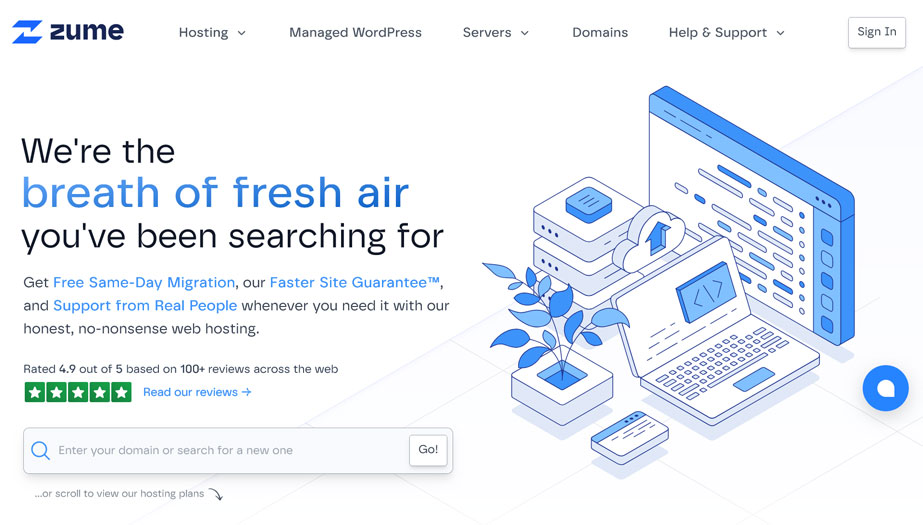
- Zume: Another customer favorite. Zume offers hosting from $8 for monthly plans, less with an annual subscriptions. Managed WordPress hosting is available for less than $15/month. Notable features: no price increases at renewal, data centers in the UK, US, and EU, and a guarantee that your site will load faster than on your old host. Zume powers their servers with renewable energy and plants trees for new customers.
- GreenGeeks: As the name suggests, this is another eco-friendly hosting provider. Features include 99.9% uptime, 24/7 support, unmetered traffic, a 30-day money-back guarantee, and trees planted for every new account. GreenGeeks offers shared, VPS, dedicated, and (managed) WordPress hosting. First year prices offer a steep discount (from $1.95/month) and a free domain. Renewals start from $13.95/month.
- Liquid Web: Offers mainly cloud, VPS, and WordPress hosting. You can have managed WordPress features from $5/month on a one-year plan for one site ($6 on a monthly plan). No price increase at renewal, unlimited visits, no traffic caps, and a 30-day money-back guarantee. You also get staging sites, daily backups, 100% uptime, and malware scans. Note that this is shared hosting, VPS hosting is more expensive.
- Cloudways: A managed cloud hosting provider and popular among developers, so it comes with a learning curve. You get one-click WordPress installation, 24/7 support, 99.99% uptime, and enterprise-grade security starting from $11/month (no price increases). There is a three-day free trial, staging environments, automated backups, and free SSL. Plans have bandwidth limits, but they start at 1TB, which is plenty.
Managed WordPress Hosting
If you want to be absolutely hands-off with your website, you can also opt for managed hosting. While some of the providers above offer managed features, these candidates are full-on managed:
- WP Engine: This is where this website is hosted. WP Engine takes care of security (e.g. plugin security scans, SSL, automatic backups), performance (e.g. caching, CDN), core updates, and offer one-click staging and development sites. You can get started for $25/month for one website (paid annually). Pay attention to the visitor and bandwidth limits, there are overage fees if you exceed them.
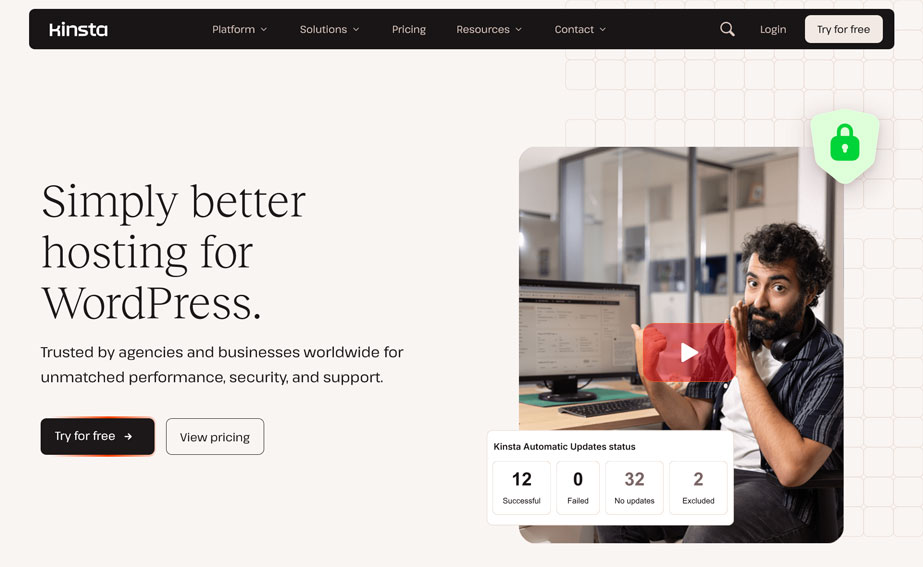
- Kinsta: Kinsta has put a lot of work into their user interface and taking care of your site is a delight. Kinsta sites are fast and come with malware scans and removal, a CDN and edge caching, free SSL, and unlimited free migrations for all existing WordPress sites you may have. Like many managed hosting providers, they have visitor or bandwidth limits. A single site with an annual plan is available for $30/month.
- WordPress.com: While WordPress.org is where you get the free open-source software, WordPress.com is a managed hosting provider for WordPress websites. What makes them stand out is that their plans have no visitor or bandwidth limits. WordPress.com takes care of website security, updates, and performance with top-notch features in each category. You also get staging sites, premium themes, and additional features such as built-in newsletter functionality. Yearly plans include a free domain for the first year and start from $3.25/month on a two-year plan though I would recommend at least the Premium plan for $6.5/month.
- Siteground: I’ve used Siteground on several occasions and my experience has always been great. Their managed WordPress hosting comes with automatic setup and updates as well as built-in speed and security features. You get a free domain and email with every new plan, 99.9% server uptime, and great support. Be aware that their plans have visitor limits and that the renewal price is higher (from $17.99/month) than the initial fee (from $2.99/month).
WordPress Page-Builder Plugins
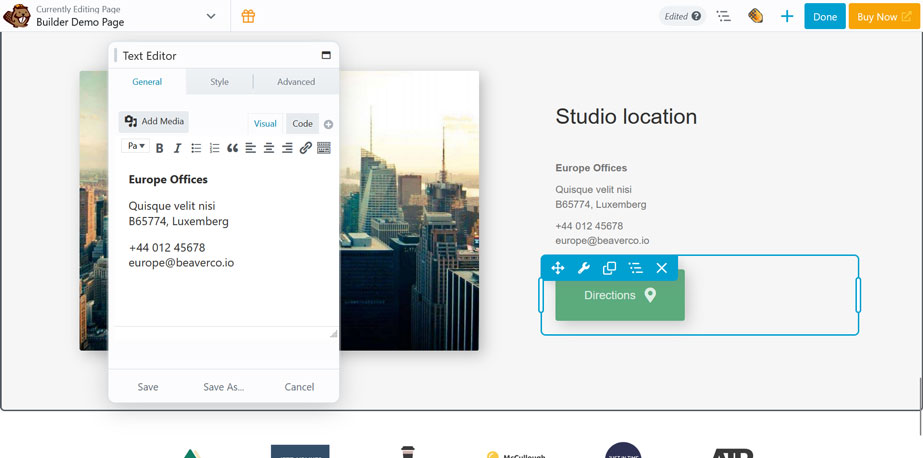
If you don’t know how to code and don’t want to rely on WordPress-native functionality to design your site, these page-builder plugins can make your life easier:
- Elementor: The most popular WordPress page builder has a drag-and-drop editor with many customization options and types of content blocks. On higher plans, it includes additional functionality like a popup builder or AI tools. The company also offers hosting and an all-in-one website platform. Plans start at $4.99/month ($59/year) for the page builder plugin for one site. There is a 30-day money-back guarantee and a free version you can use to try it out.
- Beaver Builder: This builder comes with a live interface, modules for almost any kind of page content, and pre-designed templates. It works with the built-in WordPress editor and has options to create your own theme or use their starter theme. You can try it out with an online demo. A one-year license for one site is $89.
- Thrive Architect: Thrive Archtiect is very marketing and conversion-focused. It has over 300 pre-designed page templates and many page elements for that purpose. All are fully customizable via the front-end editor. Licenses are $99/year for the standalone plugin (renews at $199) and $299/year for their entire suite of plugins (renews at $599).
- Brizy: Aimed at agencies and SaaS companies, Brizy is also suitable for personal use. It has more than 180 starter templates for different website types and 36+ pre-designed, customizable content blocks. Brizy offers AI tools for quick site creation and a clean editing interface. There is a limited free version. Paid licenses start from $59/year (for one site) and the plugin offers a separate cloud version including hosting.
- Bricks: Unlike other page builders, Bricks is a theme, not a plugin. It’s known for its clean and fast code output and is more geared towards developers. For example, it allows you to add custom code to enhance website design and functionality. Dozens of pre-made wireframes and templates make getting started easy. You can try Bricks online for free. A one-website license is $79/year and they have a generous 60-day money-back guarantee.
Website Builders
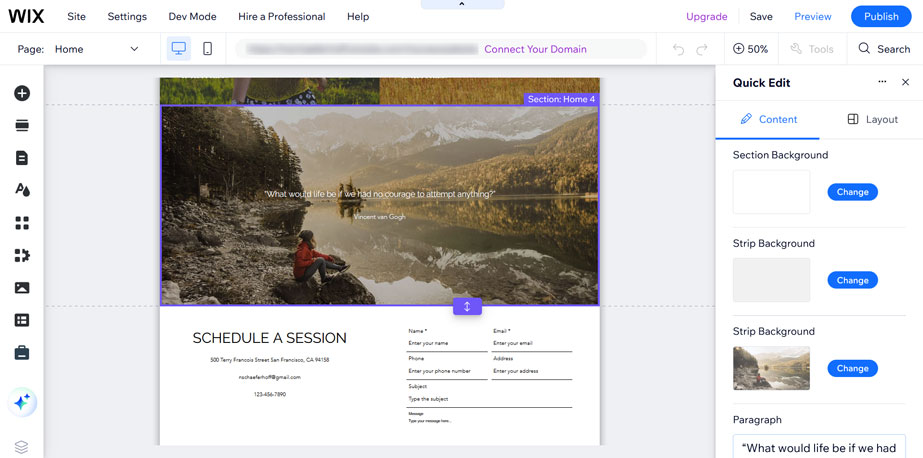
If you are not into WordPress, going the SaaS route is also an option and there are many good candidates to choose from:
- Wix: One of the most popular website builders, Wix offers many high-quality templates, a drag-and-drop website builder, as well as e-commerce and blogging features. The cheapest plan is $17/month with a free one-year domain but just 2GB storage and no e-commerce capabilities. There is a 14-day money-back guarantee so you can try before you buy. In fact, you can try the whole thing for free, you just won’t be able to publish your site without a paid plan.
- Squarespace: Squarespace, too, offers many templates, a drag-and-drop editor, and the ability to use custom CSS. The builder has e-commerce, online course, and membership capabilities even on the lowest tier plan ($14/month on an annual subscription). You get a free custom domain the for first year and unlimited bandwidth. Some features are locked behind higher tiers, which also have more affordable payment processing fees. You can try out Squarespace for free and without a credit card.
- Shopify: If you are definitely building an online shop, Shopify has become a bit of the gold standard to do so. The builder has no bandwidth or storage limits and doesn’t reserve a lot of features for higher plans. Their more expensive subscriptions offer more affordable sales fees instead. Shopify provides many ways to sell products beyond a website and 13,000+ apps to extend your shop. Plans start from $29/month for a single-person account on a yearly plan ($1/month for the first three months). A free trial is available.
- Webflow: This builder is especially suitable for people who have experience with design and layout programs. Webflow is reminiscent of Photoshop and similar programs. That also means it’s not that beginner-friendly, but if you are part of its target group, it’s pretty nifty and powerful. Just be aware that its pricing is kind of confusing. You need two different kinds of plans and I couldn’t get super clear on what the difference is. But there is free plan for both so you can try it out!
Other options to check out are Framer (plans from $10/month), Pixpa (from $9/month, less for annual or biannual plan), and Durable ($12/month on a yearly plan).
Start Building Your Website Today
Phew, that was a lot to get through, wasn’t it? I know the topic of building your own website can seem a bit overwhelming at first, but the last thing I want is for you to walk away discouraged.
If you don’t know how to make a decision, my advice is to assess both your technical abilities and willingness/capacity to learn. This should lead you to a main category of website-building tools.
Start testing the tools in this category. Pretty much all solutions offer free trials and ways to test the water before committing. Take ample of advantage of that by setting up a bunch of test websites. Kick the tires, see what feels the easiest and most natural to use, and make a decision from an informed point of view.
Plus, remember that you can always branch out later and rebuild your site in a different system. The content won’t change, just the design, so you are not starting completely from scratch. In short, nothing is set in stone. Start with what you can do and where you are right now.
Let me know in the comments which solution you went for. If you have questions, post those as well, I’d be happy to help.
Leave a Reply